
Easy Preview As
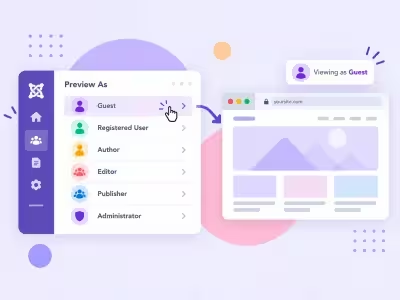
Preview the public site as Guest or as a user group, without creating a user. Joomla 4, 5, and 6.
30-day money-back guarantee
Changelog — Easy Preview As
Version 1.0.0: 08 October 2026
- First release
- Preview the public site as Guest or as one or more user groups, without creating a user
- Read-only preview: forms and logins are blocked until you exit
- Saved presets, a site toolbar, and a timed session
- Super User groups cannot be previewed
Component + system plugin
Easy Preview As
See the public site as Guest or a user group.
No second account is created. Passwords and groups stay as they are, and the preview does not open the administrator.
Step 1
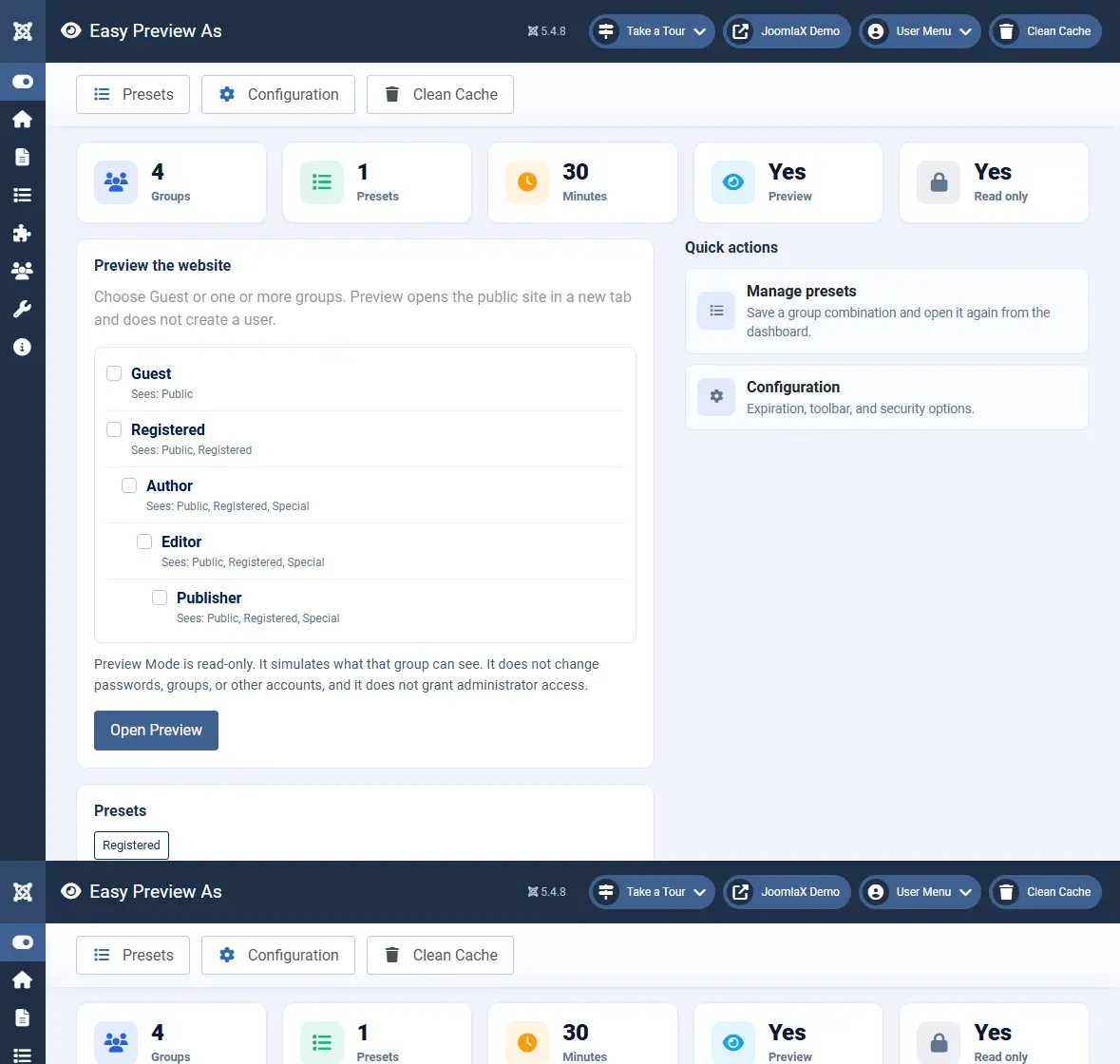
Choose Guest or a group
Open Components > Easy Preview As. Tick Guest, or one or more groups, then choose Open Preview. Guest is exclusive: ticking it clears the other groups. Each row shows the access levels that group can see.
Step 2
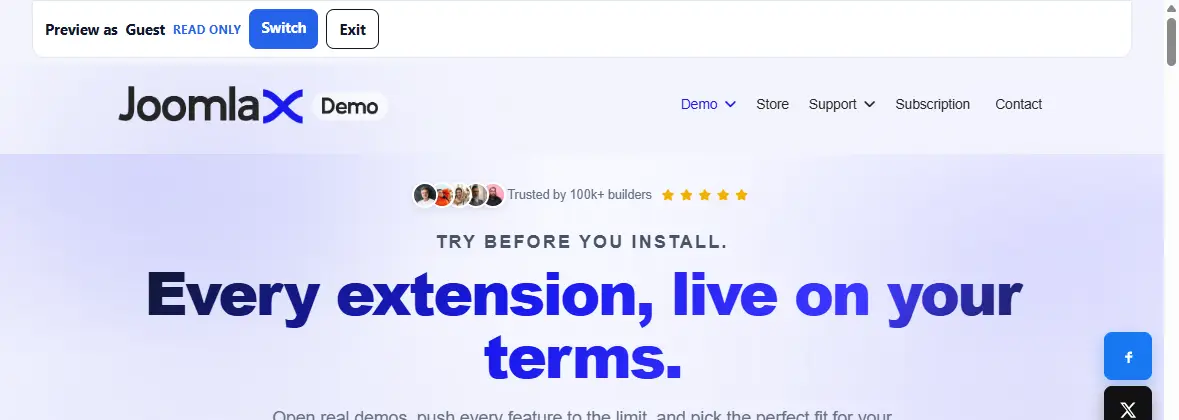
Read the site with the toolbar
The public site opens with a bar that names the group and marks the preview read-only. Forms and logins are blocked. Switch moves to another allowed group and returns to the same page. Exit ends the preview.
Step 3
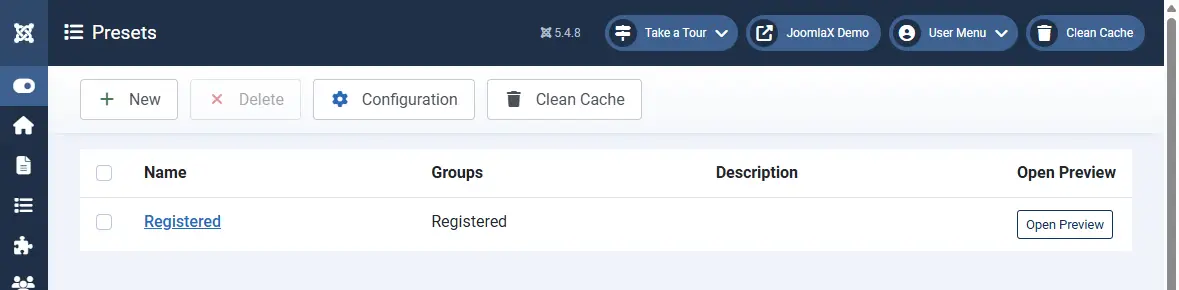
Save a combination
Open Presets and add a name plus the groups you check often. Open Preview on that row starts the same combination again. Manage Presets is a separate permission from Start Preview.
Step 4
Set the session and the limits
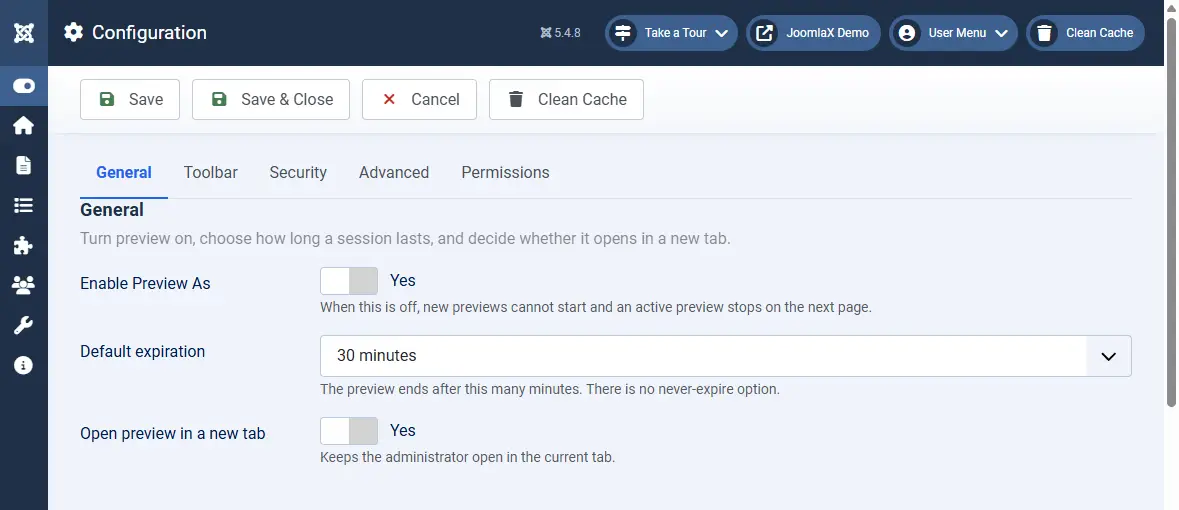
Open Configuration. The session can last 15, 30, 60, or 120 minutes. The default is 30. Super User groups are never listed. Manager and Administrator appear only when privileged groups are allowed.
Guest or a group
Menus, modules, and articles follow that access. No user row is created.
Read only
Forms and logins stay blocked until you exit the preview.
Timed session
The preview ends after the time you set, or when you click Exit.
On your site
How a preview runs
- Install the package. The system plugin is enabled on a new install.
- Open Components, Easy Preview As, and tick Guest or a group.
- Open Preview. The public site loads with the toolbar.
- Switch groups if you need to, then Exit. Accounts are unchanged.